//Block search for knowledge base / portal
System Maintenance: BACB accounts will be temporarily unavailable on Tuesday, June 9, from 7:00 p.m. to 9:00 p.m. (MT). Thank you for your patience.
Skip to main content
Print

How do I remove a supervisee as an RBT Requirements Coordinator?


  • Go to the Supervision Information widget on the main page of your portal account and select Manage Supervision.
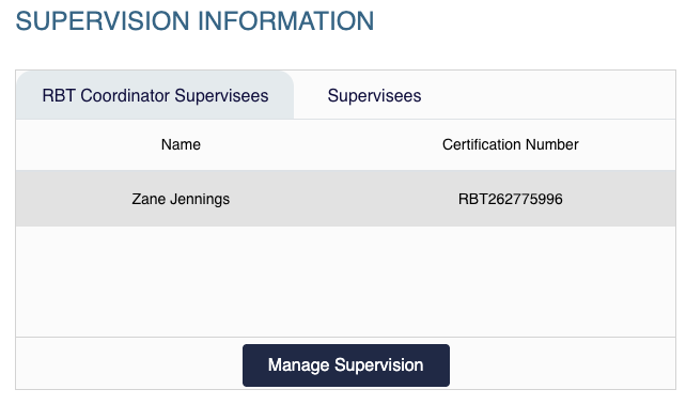
  • Supervision Information widget with RBT Coordinator Supervisees tab showing supervisee name and certification number, and Manage Supervision button.
  • Or click Supervision at the top of the screen.
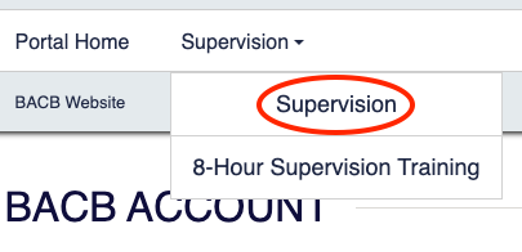
  • Top navigation bar with Supervision dropdown menu showing Supervision option highlighted.
  • To remove a supervisee, select the trash can icon next to the supervisee’s name.
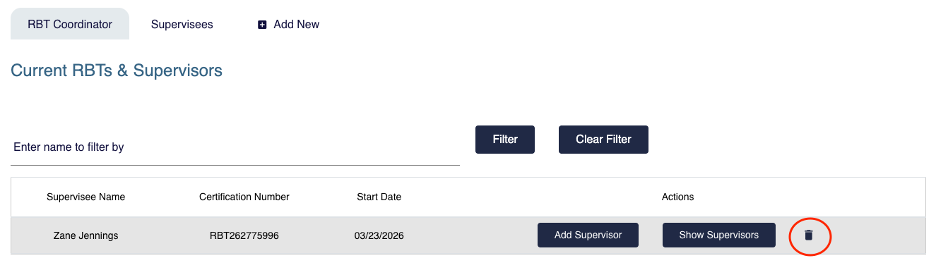
  • Supervision page showing Current RBTs and Supervisors list with trashcan delete icon highlighted in the Actions column.
  • Enter the supervision end date, choose a reason from the drop-down menu, and click Confirm to complete the removal. This will remove both the supervisee and their supervisor.
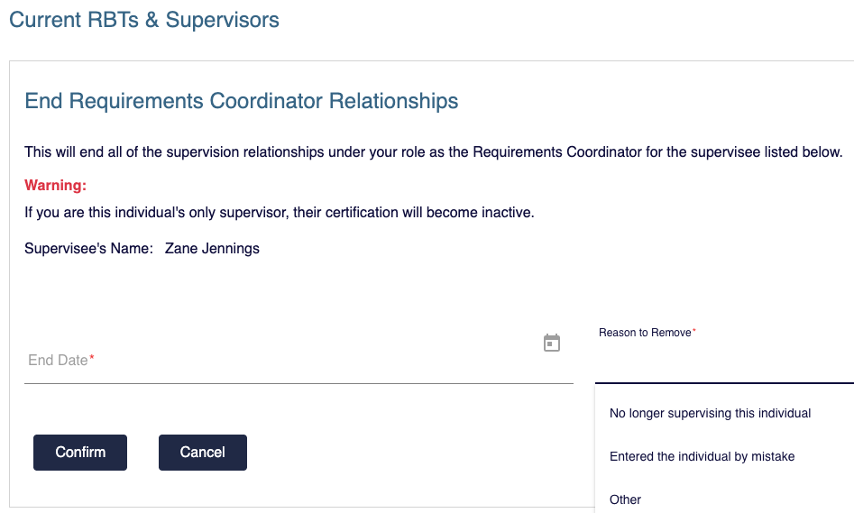
  • End Requirements Coordinator Relationships form showing warning message, supervisee name, end date field, reason to remove options, and Confirm and Cancel buttons.
  • The supervisee will no longer appear on your supervision page or in the Supervision Information widget under Requirements Coordinator.
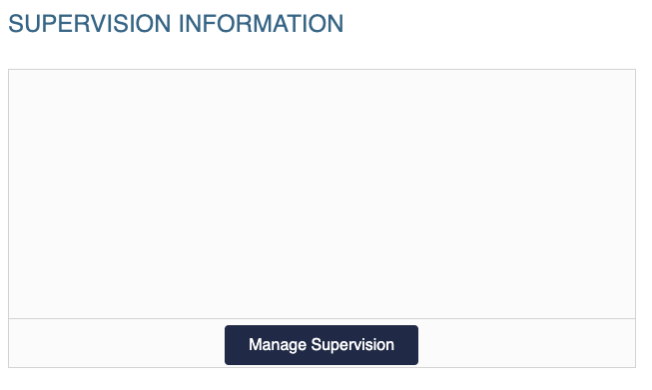
  • Supervision Information widget with Manage Supervision button displayed.
  • Supervision page showing Current RBTs and Supervisors section with message indicating no RBT Coordinator supervisions to display.