//Block search for knowledge base / portal
Skip to main content
Print

How do I add supervisees as an RBT Coordinator?


  • Go to the Supervision Information widget on the main page of your portal account and select Manage Supervision or click Supervision at the top of the screen.
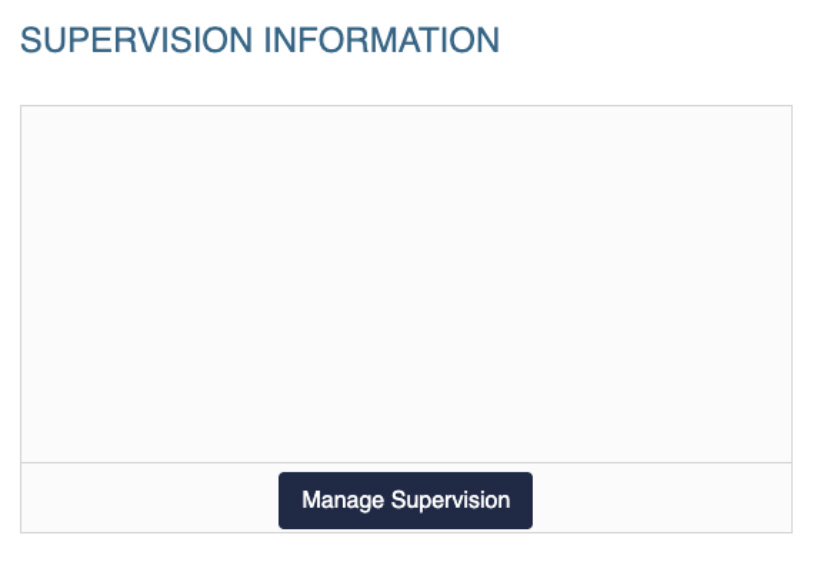
  • Supervision Information section with a “Manage Supervision” button to view or update supervision details.
  • Portal navigation menu with the “Supervision” option expanded and highlighted.
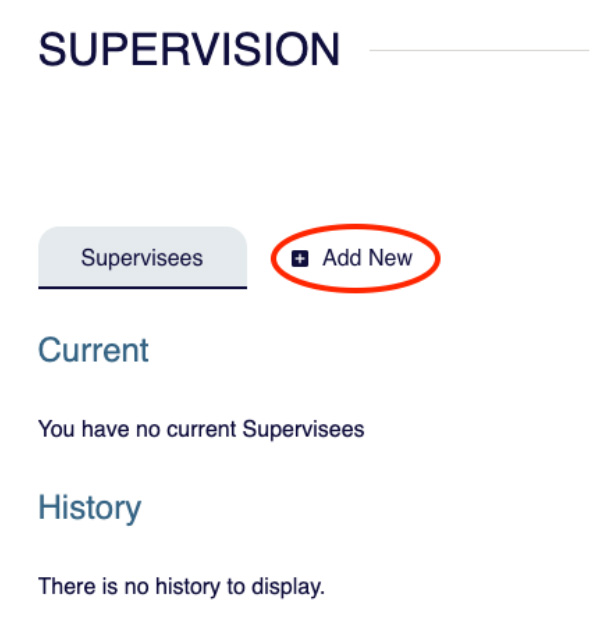
  • Select Add New.
  • Supervision page showing no current supervisees and an “Add New” button to add a supervisee.
  • Choose RBT as the supervisee certification, then answer the remaining questions that appear.
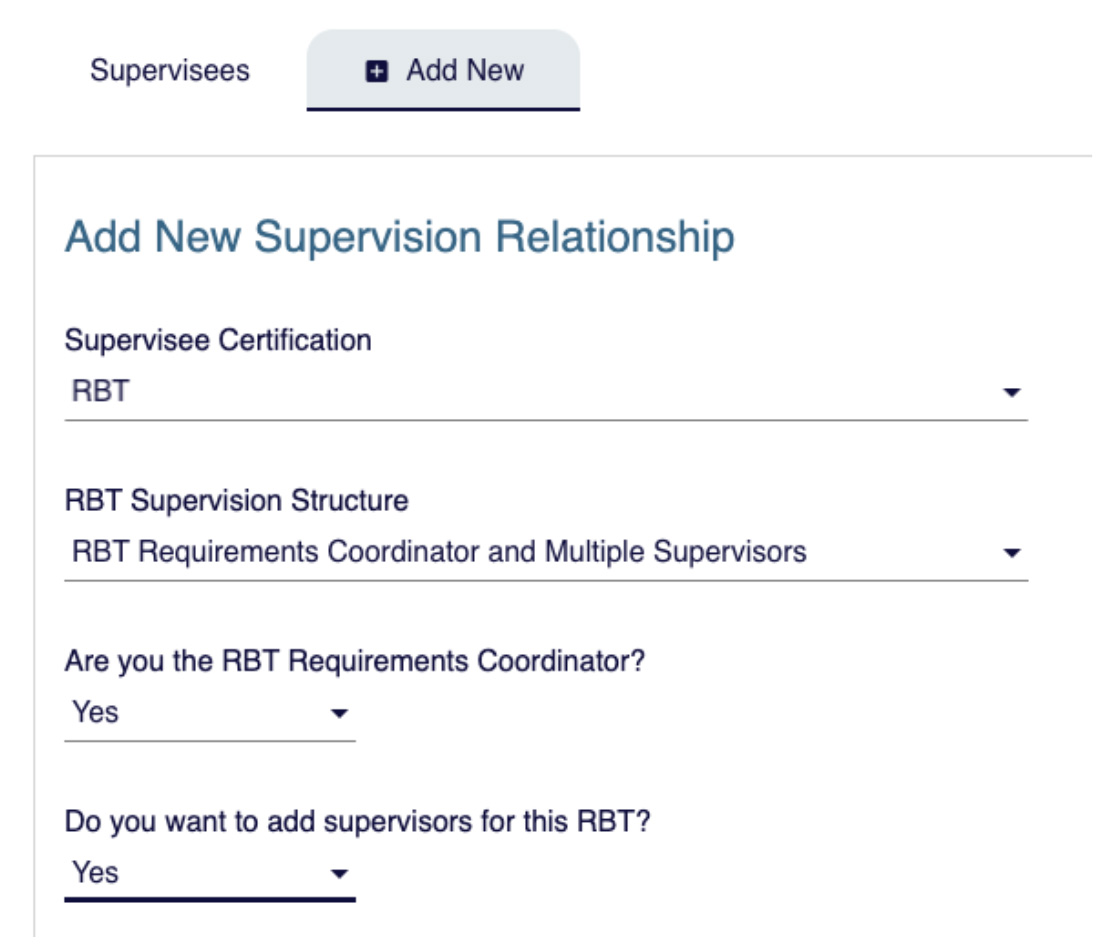
  • Form to add a new supervision relationship with fields for supervisee certification, supervision structure, coordinator status, and adding supervisors.
  • Search the database for the RBT you will be supervising and add them to your portal account.

  • Search form for a supervisee using BACB ID or certification number, with an input field and “Search for Supervisee” button.
  • After adding the RBT, you will be prompted to search for and add the BCBA or BCaBA supervisor for the RBT.
  • Form to search for a supervisor by BACB ID or certification number, with an option to indicate a non-BACB certified supervisor.
  • Once both the RBT and supervisor have been added that information will appear on the Supervision page.
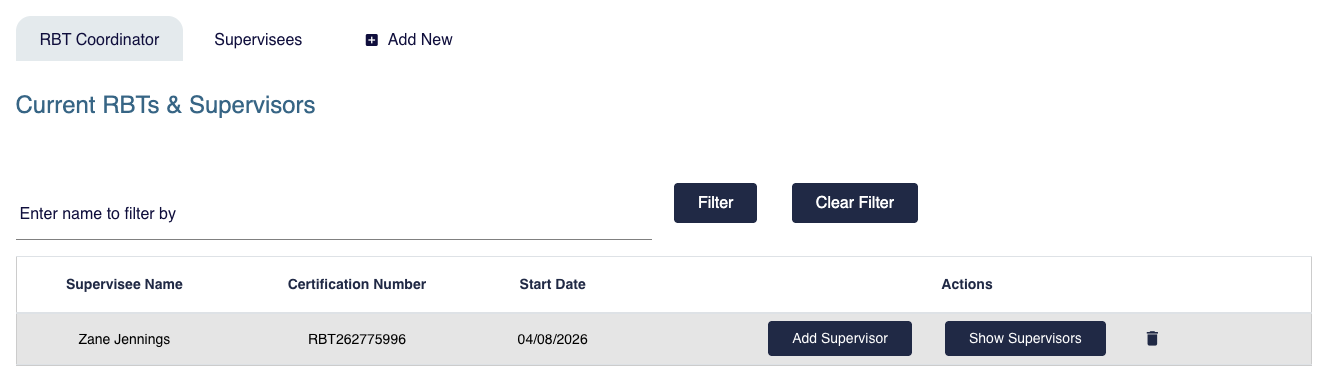
  • RBT Coordinator view showing a table of current RBTs with filter options and a “Show Supervisors” action button.
  • Select Show Supervisors to view supervisor details:
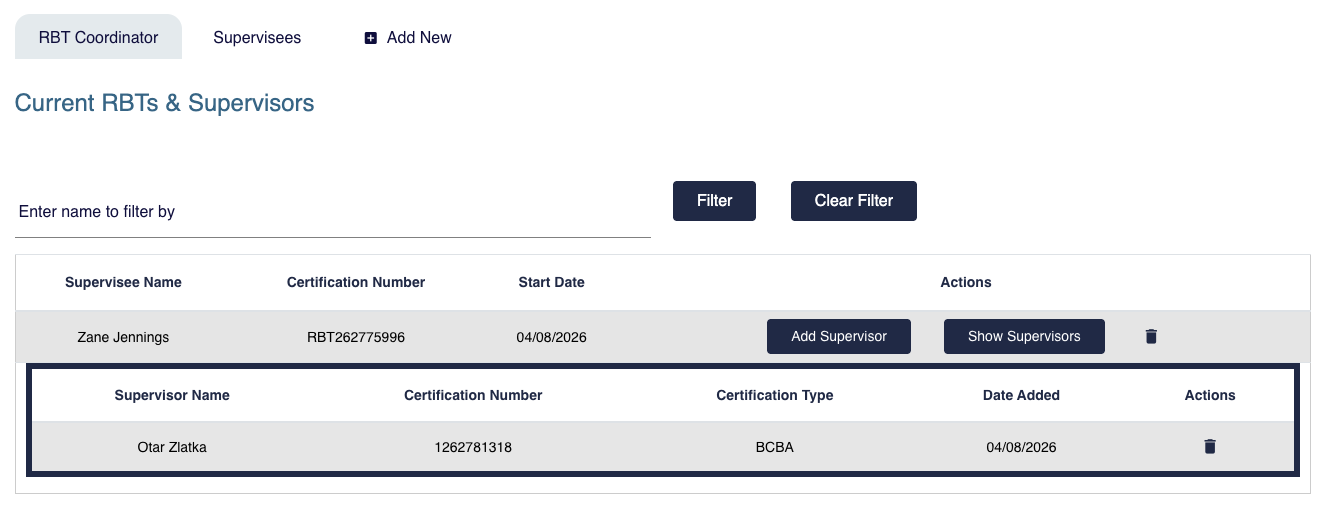
  • Table of current RBTs with an expanded row displaying associated supervisor details, including name, certification type, and date added.
  • The Supervision Information widget on your portal account home page will also show that you are an RBT Coordinator:
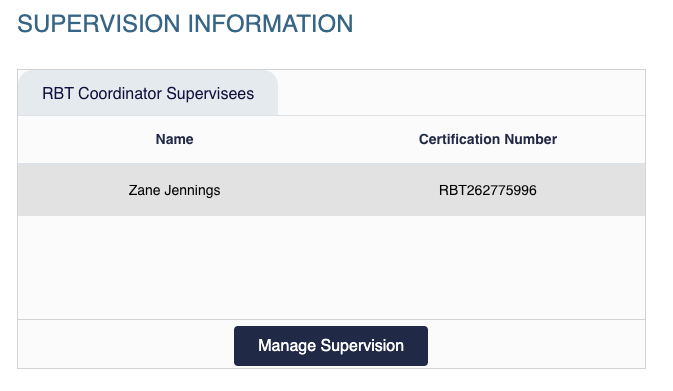
  • Supervision Information section listing one supervisee with certification number and a “Manage Supervision” button.