Portal Knowledge Base
How should I respond to an action item?
- Go to the Application Action Items widget on the home page of your BACB portal account.
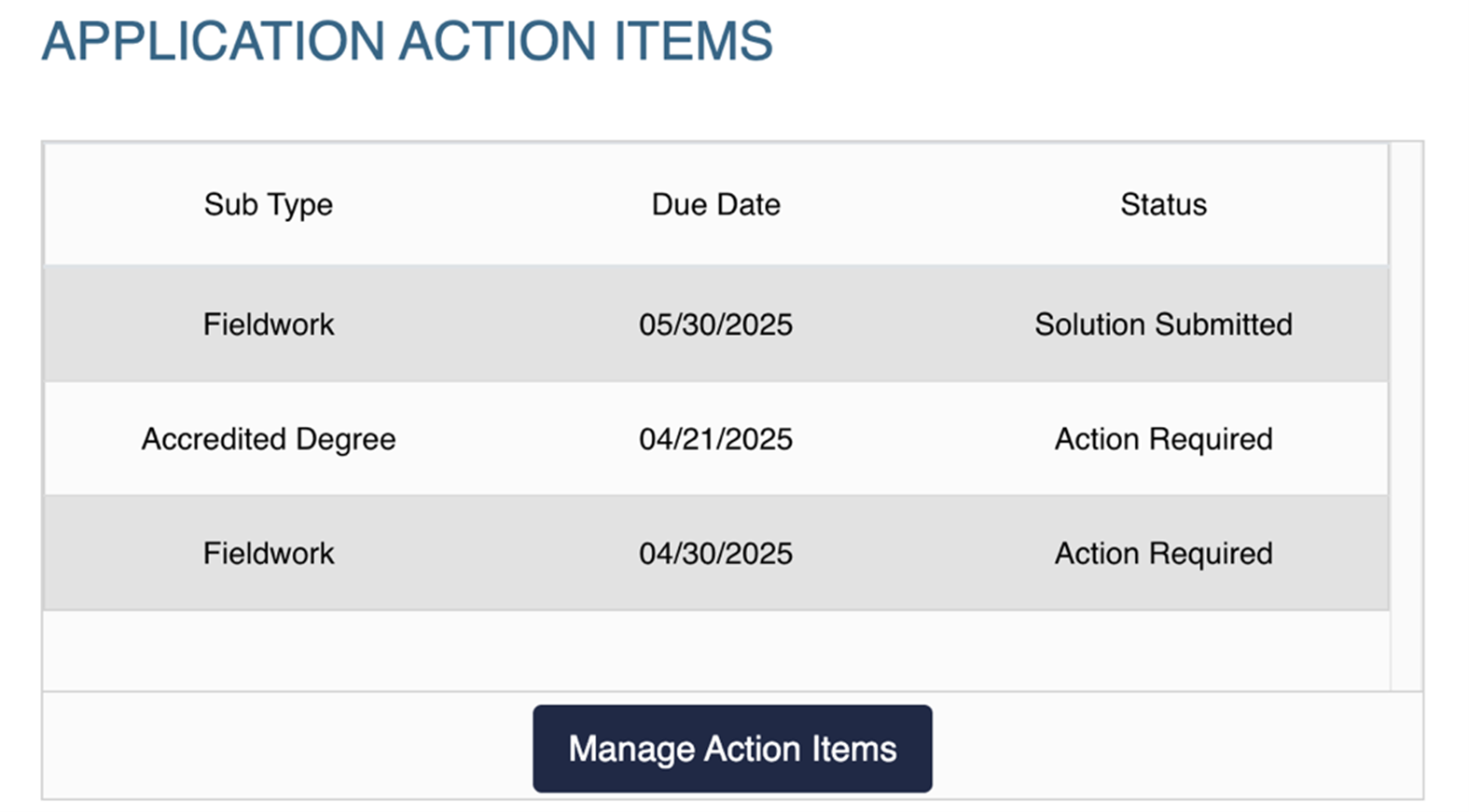
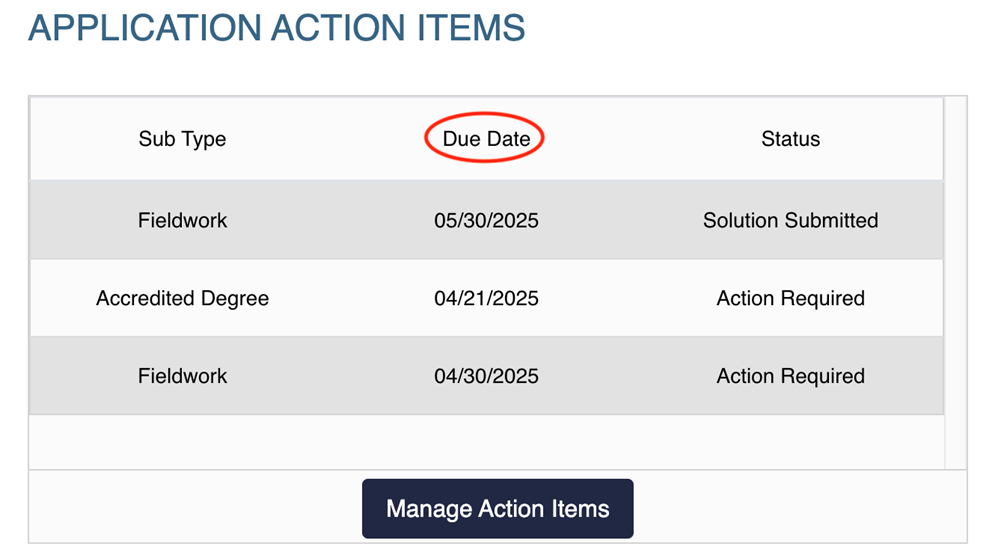
- Each action item has an expiration date listed in the Application Action Items widget. Be sure to complete and submit the item before it expires.
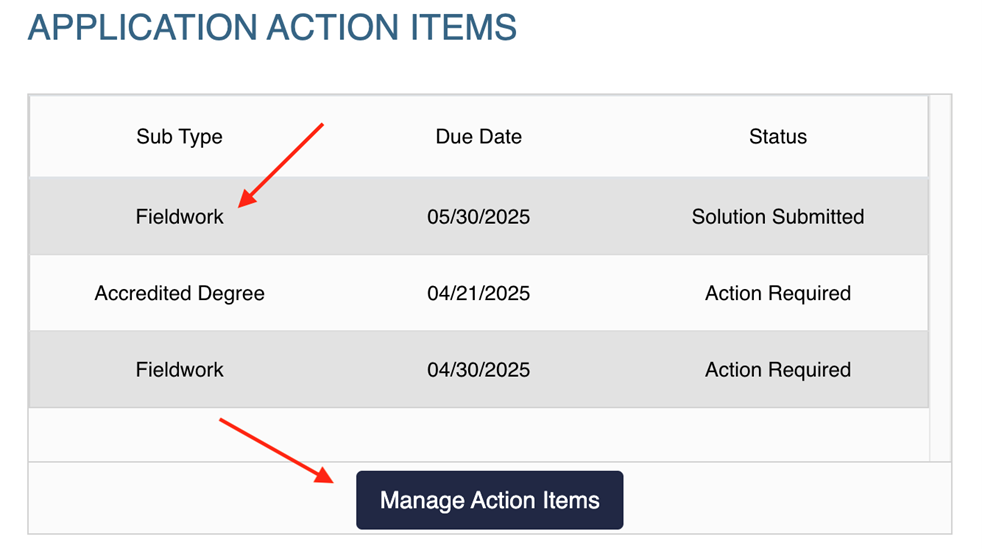
- Click on the specific action item or select Manage Action Items to view and complete the required task.
-
Review the feedback and complete the required actions.
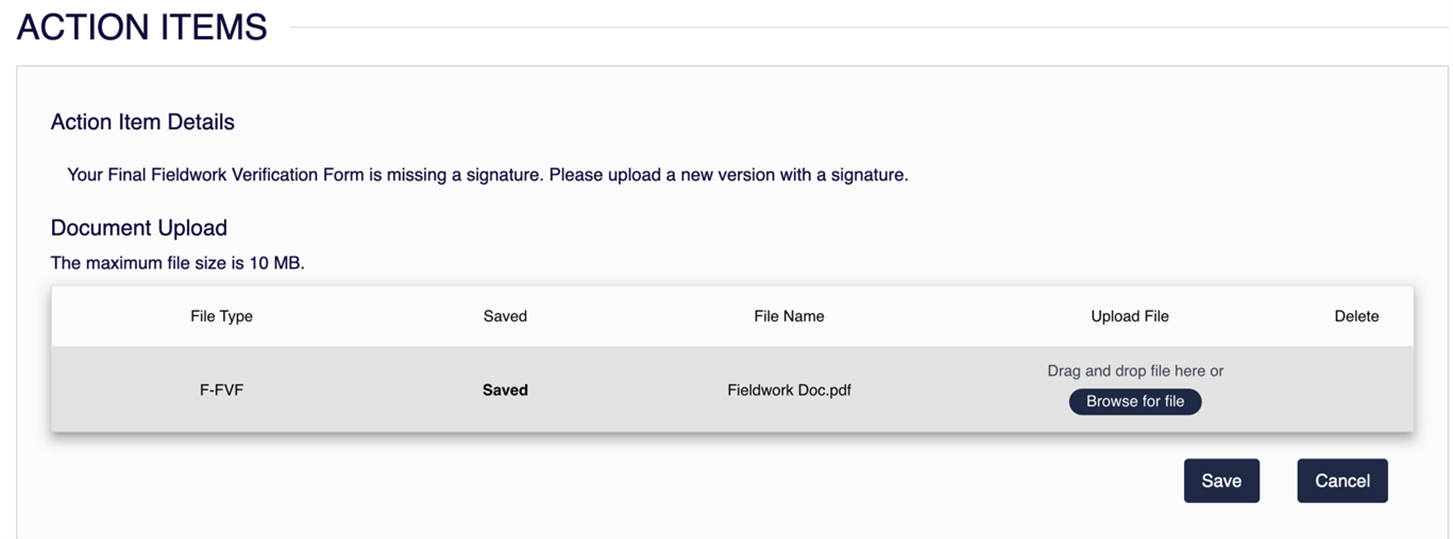
- For example, if the action item requires you to upload a new document, upload the document into the action item and select Save.
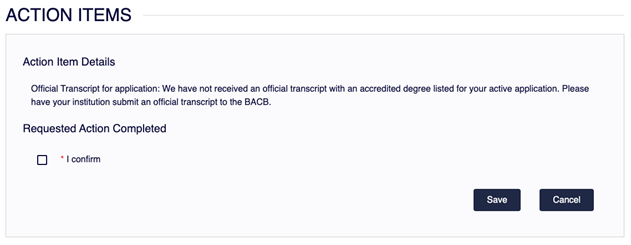
- If you need to submit a new or updated official university transcript, it must be sent directly by the university. In this case, respond to the action item confirming that the transcript has been ordered.
- While you have open action items, your application status will show as Awaiting Applicant Action. Once all action items for an application have been submitted, your status will update to Under Review.