//Block search for knowledge base / portal
Skip to main content
Print

How do I remove or change a supervisor as an RBT Requirements Coordinator?

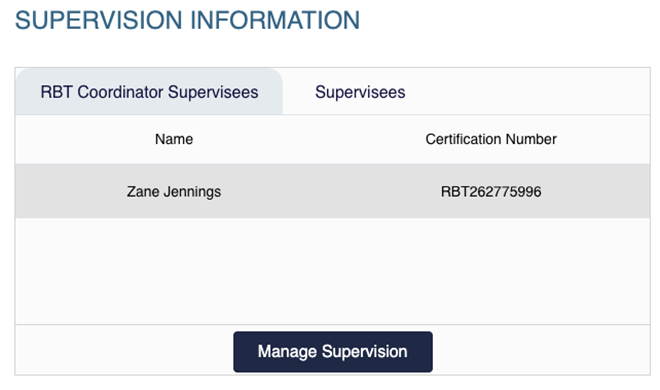
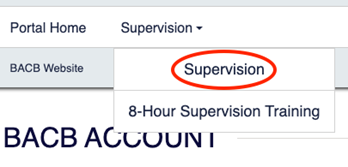
  • Go to the Supervision Information widget on the main page of your portal account and select Manage Supervision, or click Supervision at the top of the screen
  • Supervision Information widget with RBT Coordinator Supervisees tab showing supervisee name and certification number, and Manage Supervision button.
  • Top navigation bar with Supervision menu highlighted.
  • Click on the Show Supervisors button next to the RBT whose supervision you need to edit.
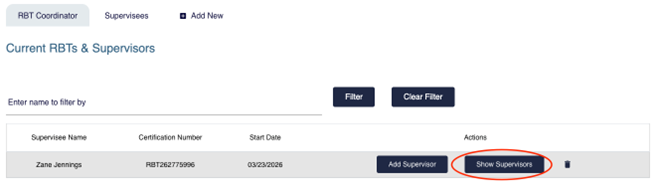
  • Supervision page showing Current RBTs and Supervisors list with Show Supervisors button highlighted in the Actions column.
  • To remove or change a supervisor, select the trash can icon next to the supervisor’s name.
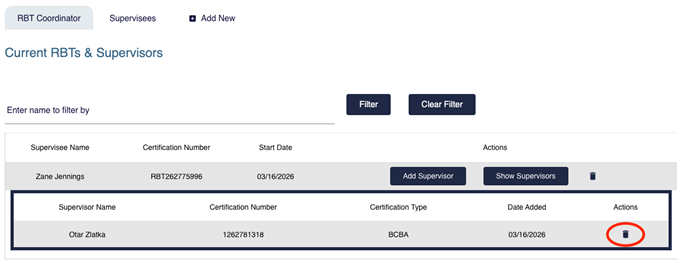
  • Supervision page showing Current RBTs and Supervisors list with Show Supervisors button highlighted in the Actions column.
  • Enter the supervision end date, select a reason from the drop-down menu, and click Confirm to complete the removal.
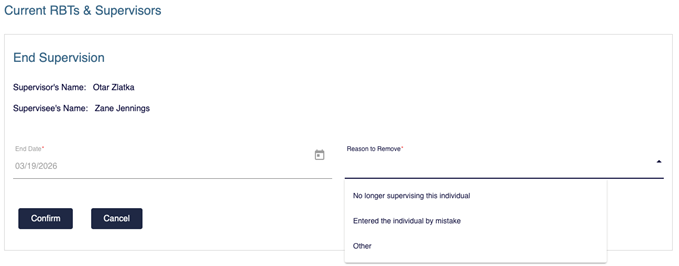
  • Supervision page with expanded supervisor details showing supervisor name, certification number, and delete icon highlighted in the Actions column.
  • The supervisor will no longer appear on your supervision page, and you will have the option to add a new supervisor for that RBT.
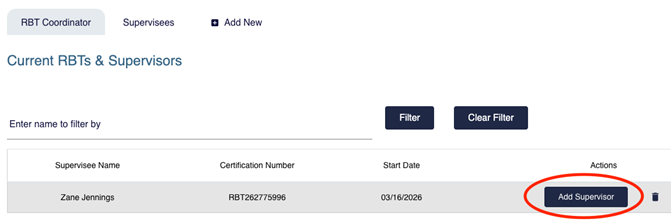
  • Supervision page showing Current RBTs and Supervisors list with Add Supervisor button highlighted in the Actions column.